Installing Docker and Docker Compose
Your EC2 instance is now ready for your Docker application, but it doesn't have Docker or Docker Compose installed yet or the images necessary to run it. After you launch your EC2 instance you'll see a gallery of options, but click on the one that looks like the below:
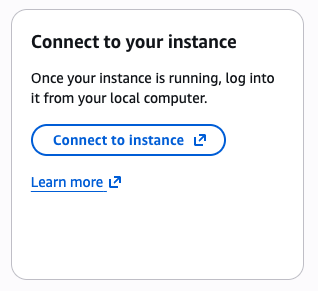
It will automatically select "Connect using a public IP", and you should see an orange "Connect" button at the bottom right corner of your window. Click connect, and you will be connected to your instance!
If you want to learn about what SSH is, check out this video!
Now, you need to install Docker and Docker Compose. Install Docker with this command:
sudo yum update -y # update yum before installing docker!

sudo yum install -y docker # installs docker

# start Docker service
sudo systemctl start docker

# make sure docker starts on boot
sudo systemctl enable docker

# allow ec2-user to run without sudo (gives user permissions)
sudo usermod -a -G docker ec2-user

exit # allows you to log back in for permission changes to take effect
You end by exiting since permission changes require a new session to take effect. You'll know it's done running when you see "logout" printed, which confirms that your exit command ran. Now, you'll need to re-connect to your instance the same way you connected to it initially - go back to your EC2 instance in the AWS console, select "Connect" to pull up the "EC2 Instance Connect" section, and click the orange "Connect" button.
Since our EC2 instance is on Amazon Linux 2023, you'll need to install the binary for docker-compose:
# downloads Docker Compose binary
sudo curl -L "https://github.com/docker/compose/releases/download/v2.24.0/docker-compose-$(uname -s)-$(uname -m)" -o /usr/local/bin/docker-compose

# makes docker compose binary executable so we can use docker-compose commands
sudo chmod +x /usr/local/bin/docker-compose
You may have noticed that, rather than using the latest version of Docker compose, we are using a fixed version to avoid compatibility errors which may arise with future versions.
Then, verify both installations using:
docker version
docker-compose version
Both should run without errors (and output version numbers), indicating the installations were successful. Now, click next to learn how to add your GitHub repo files to the instance.